Santa Stickers Tutorial

Hello crafty friends, Noelene here today I want to share with you a tutorial on how to create these adorable stickers!

Lori has a few stickers files to choose from, today I am using the Santa Stickers (SVG, Silhouette)

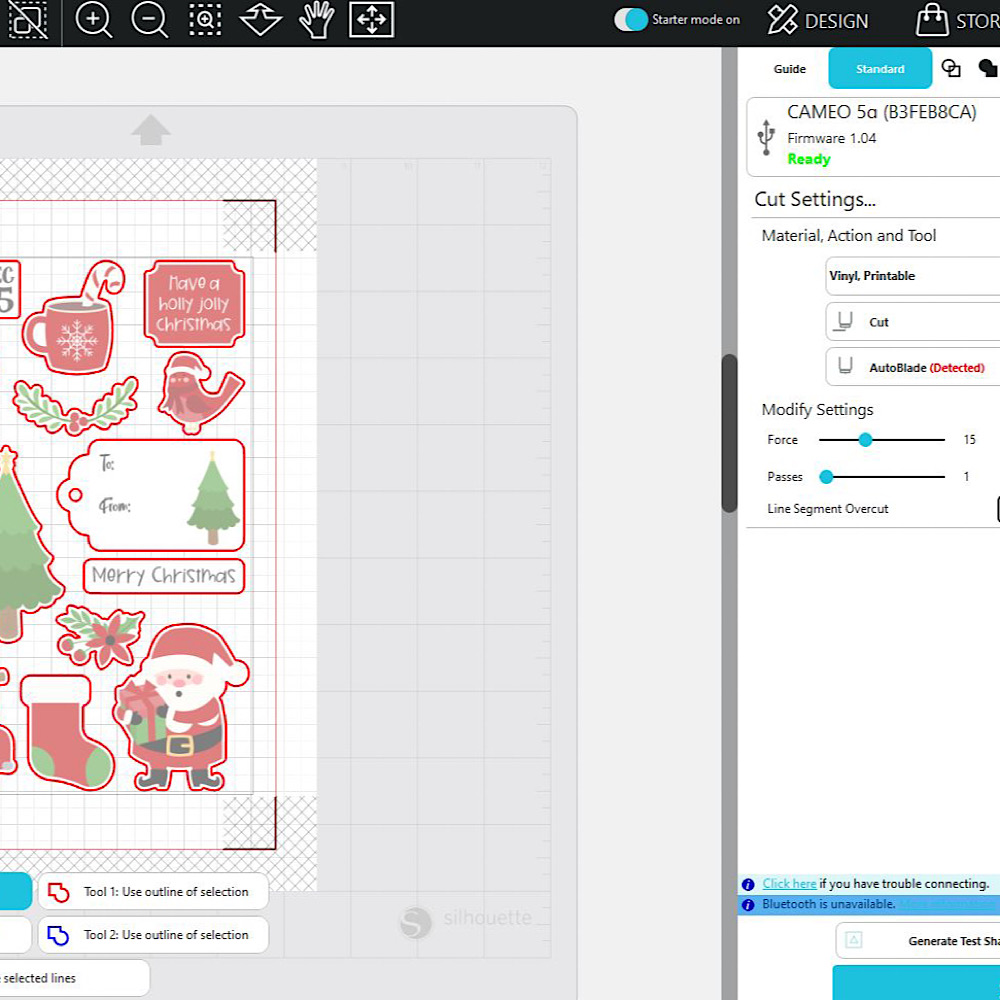
To start I uploaded the png file into my Silhouette program. Next I changed my settings in Silhouette for the desired printing paper I will be using. I am using Printable Vinyl Sticker Paper from HTV Ront. The paper is 8.5×11 inch. I didn’t have that option in the tab so I selected custom & entered the measurements in.
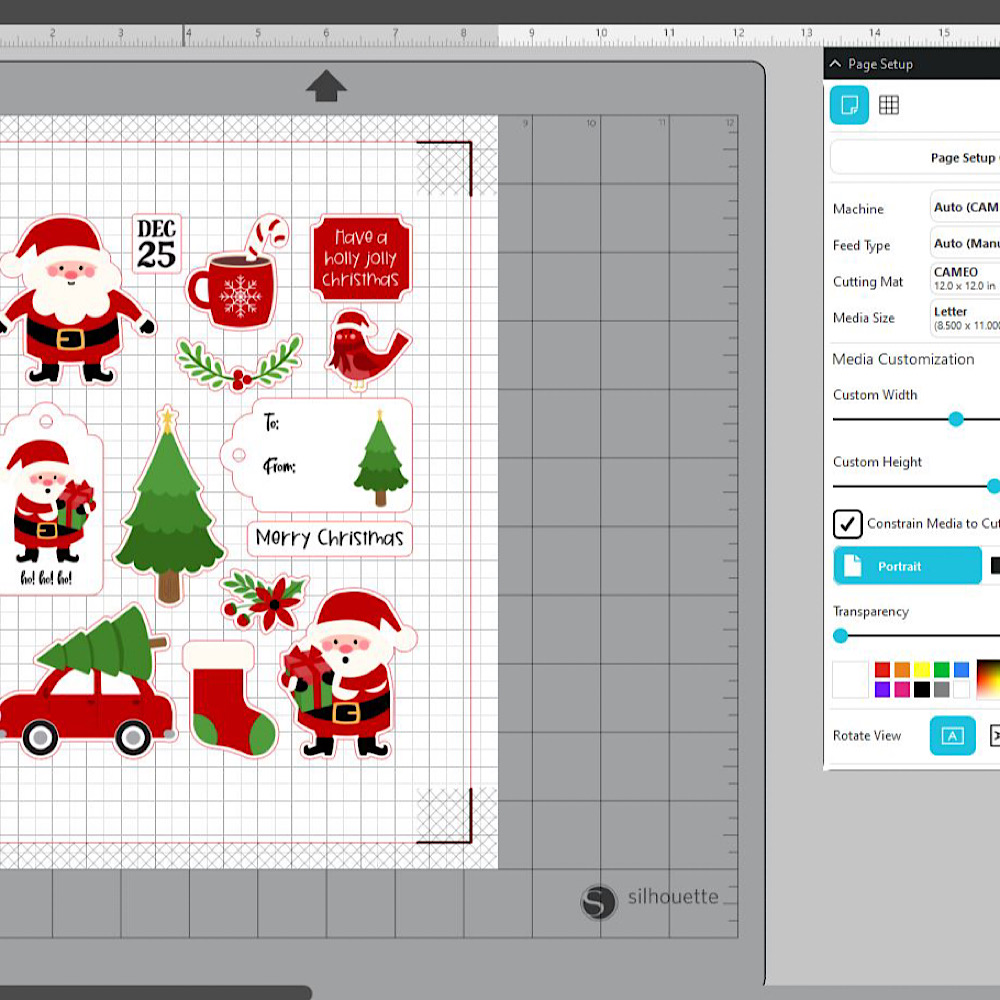
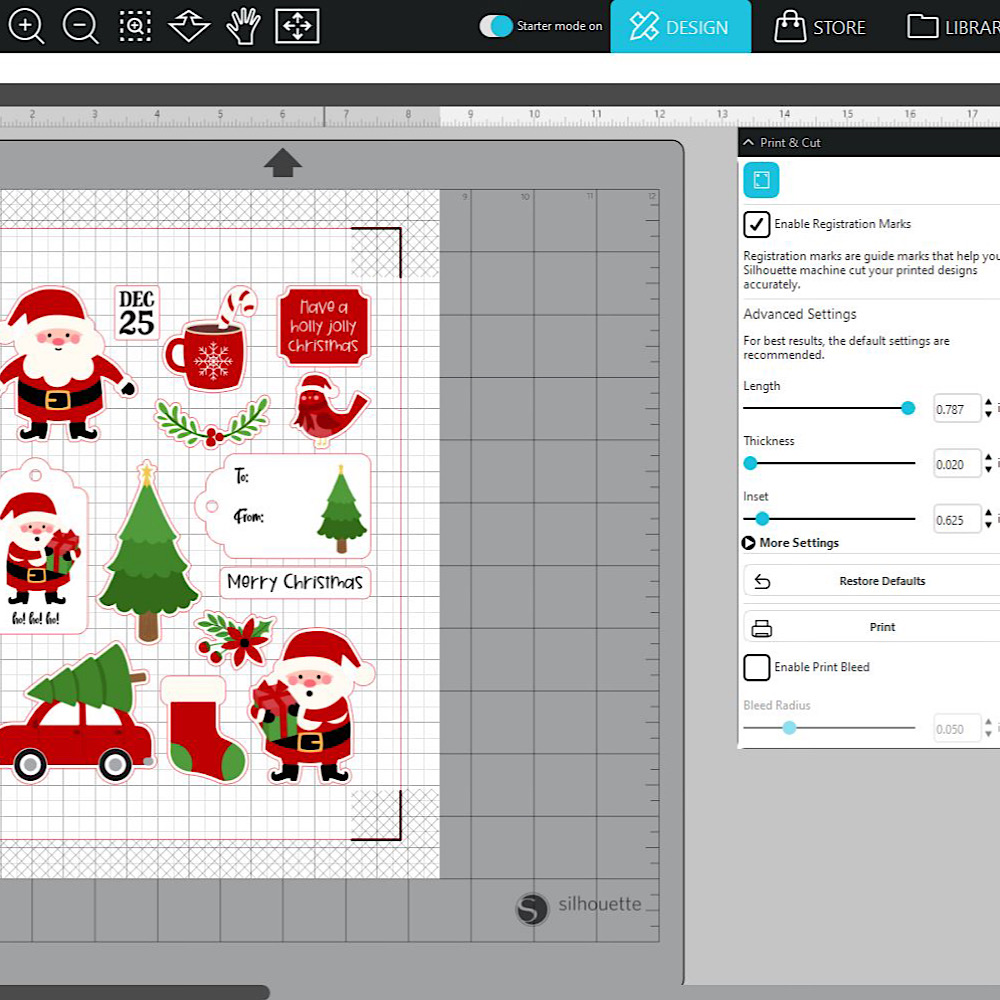
The next step click on the “Print & Cut” on the right panel. Now select “Enable Registration Marks”. If your registration marks take up too much space in your printable area, or you want to fit more stickers on the page, slide the inset tab all the way down to the left. This will move out the registration marks & save your printing space & get the most out of your paper.
Next, we set up the printer. Place your paper into the printer tray & make sure you adjust the paper size to fit your paper if it is not your usual size. Eg. I usually print on A4, so I had to adjust my tray to letter.
Now press Print in Silhouette & select your printer. If you are using glossy or matte sticker vinyl, make sure you change this in your printer settings before printing, because printing with matte printer settings on glossy paper can sometimes lead to smudges and blurry images as the printer uses more ink.
Once you have printed your stickers, place the sheet onto your Silhouette mat. Next, we will kiss-cut the stickers where your sticker is left on the paper & peels away. Select the appropriate material for your cut. In my case, I selected printable vinyl with a force of 15, a blade depth of 1, & speed of 5. This will depend on the thickness of the paper you are using. Now send it to your machine.
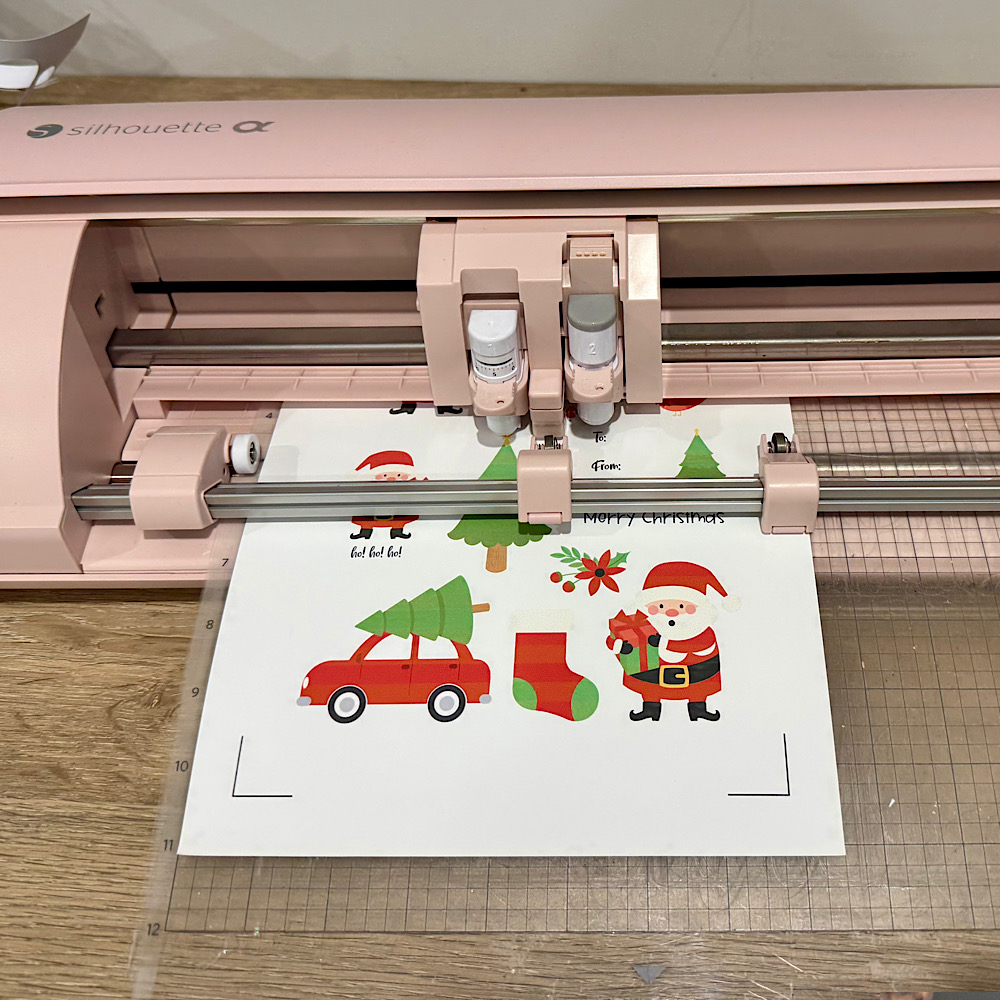
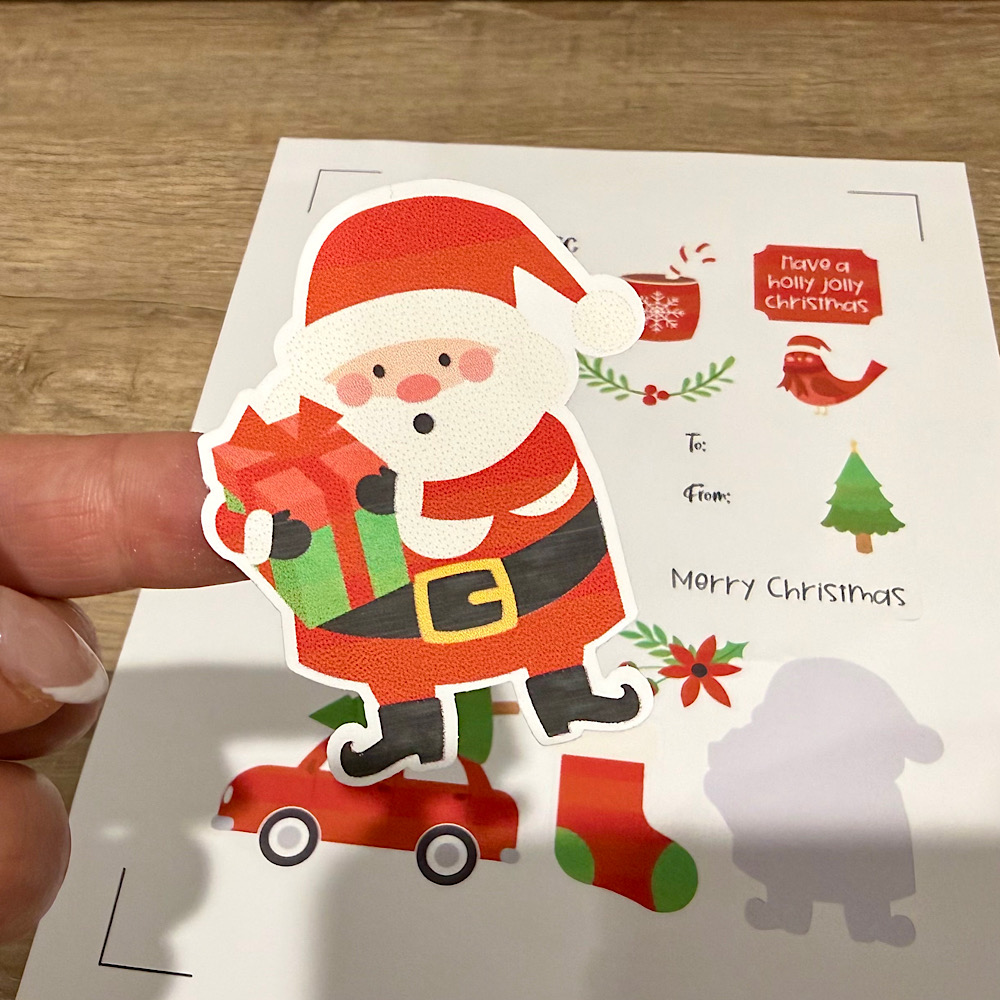
See how easily the sticker peels off!
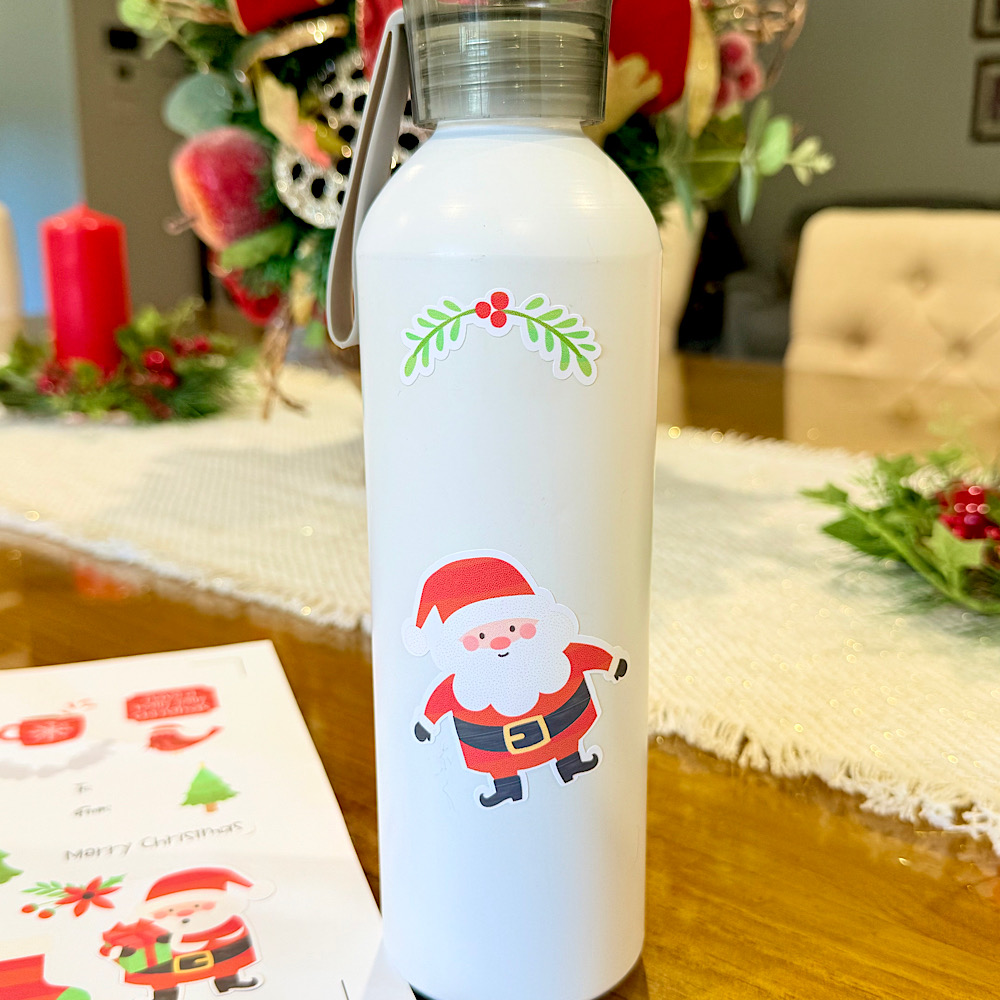
You can use these stickers as you wish. I have decorated a bottle with mine. What will you use your stickers for?
SVG File: Lori Whitlock – Santa Stickers
For more inspiration, check out my Instagram!
Thanks for stopping by!
Hugs
Noelene 🙂

Christmas at Pooh’s Place

 Hi friends!  If Pooh had a little house to decorate for Christmas, I think he’d hang his lights just a bit unevenly and save a spot by the door for Piglet.  That’s the little scene I had in mind when I paired the SVG file of Lori’s, here in Lori’s Shop (Silhouette Store) and Echo Park’s Winnie the Pooh Christmas collection.

I started with the red snowflake paper for the house and gave it a plaid roof.  My favorite part was trimming those scalloped eaves.  A few red and green enamel dots along the sweetest string of Christmas lights.  I added a wreath to the front door and tied it with Baker’s Twine.
 
The finishing touch is the little Pooh and Piglet sentiment beside the trees. It reads, “The best thing about Christmas is spending it with you”.  I love that the big sign on the roof wishes everyone a Merry Christmas!
Happy Creating!


Christmas Car Reindeer

Box Card Christmas Car Reindeer 

(Lori Whitlock SVG, Silhouette Store)

or

Box Card Christmas Car Bundle

 Today I have a bit of a quick tutorial for this festive little Box Card Reindeer driver!!! This file is just so cute and you can also make other drivers- Santa, Snowman, Penguin, Elf and Gingerbread man!

I always start by making a duplicate of the file by grouping the complete cut file together. (click on the grouped file and hit control and any arrow key for a copy). I then take the copy and shrink it and pull it aside for future reference in gluing all pieces. 

Here I ungroup the file and then move all like colors and group them and then cut out all the pieces. Assemble as shown below.

Here, you can see how the four sections come together.

When assembling the front and back of the car sections you should glue on each side rectangle piece (red) and then fold it underneath before you glue the car front on as the car front ‘hangs over’ each edge. See the above photo for reference. 

I hope you give this a try!
 
🎄🎄🎄Sue🦌🦌🦌 

A Little Something to Be Thankful For

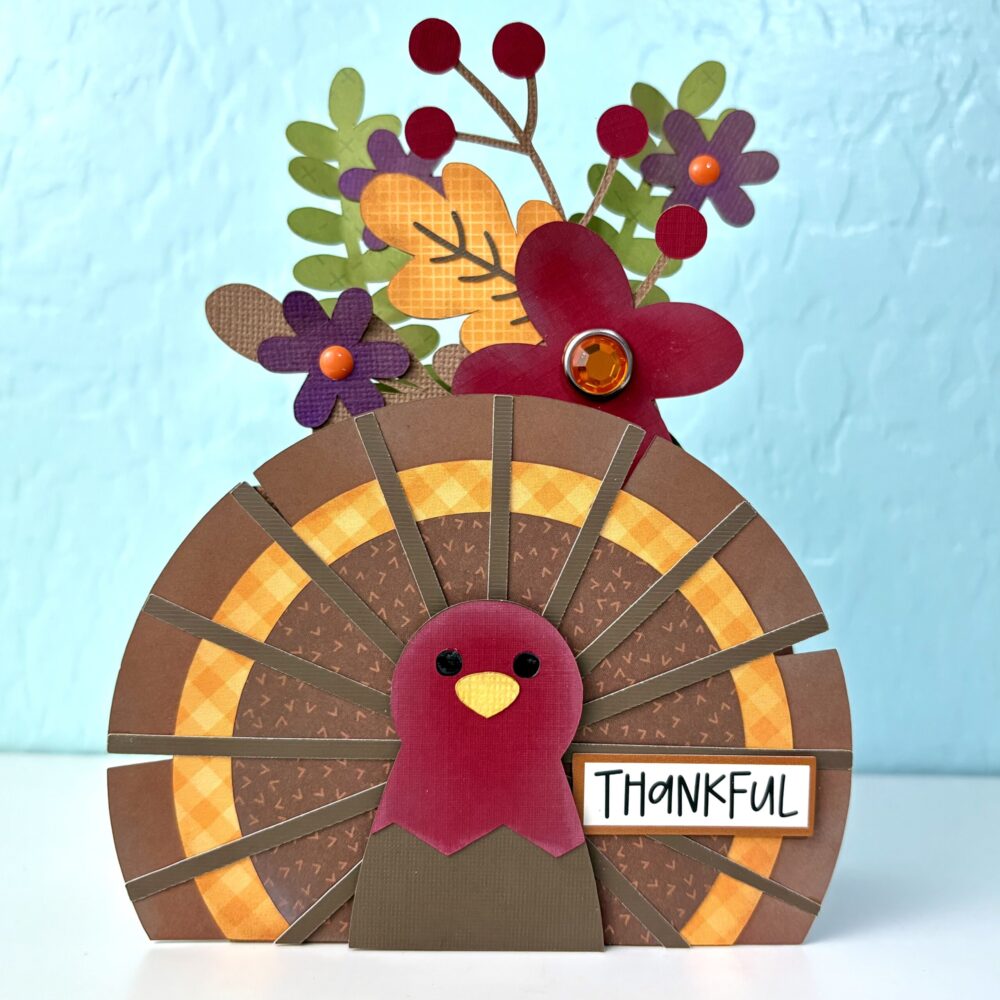
Thanksgiving is just around the corner, and I have a fun little project to share today! This turkey box card is the perfect way to send a little fall cheer and remind someone just how thankful you are for them.

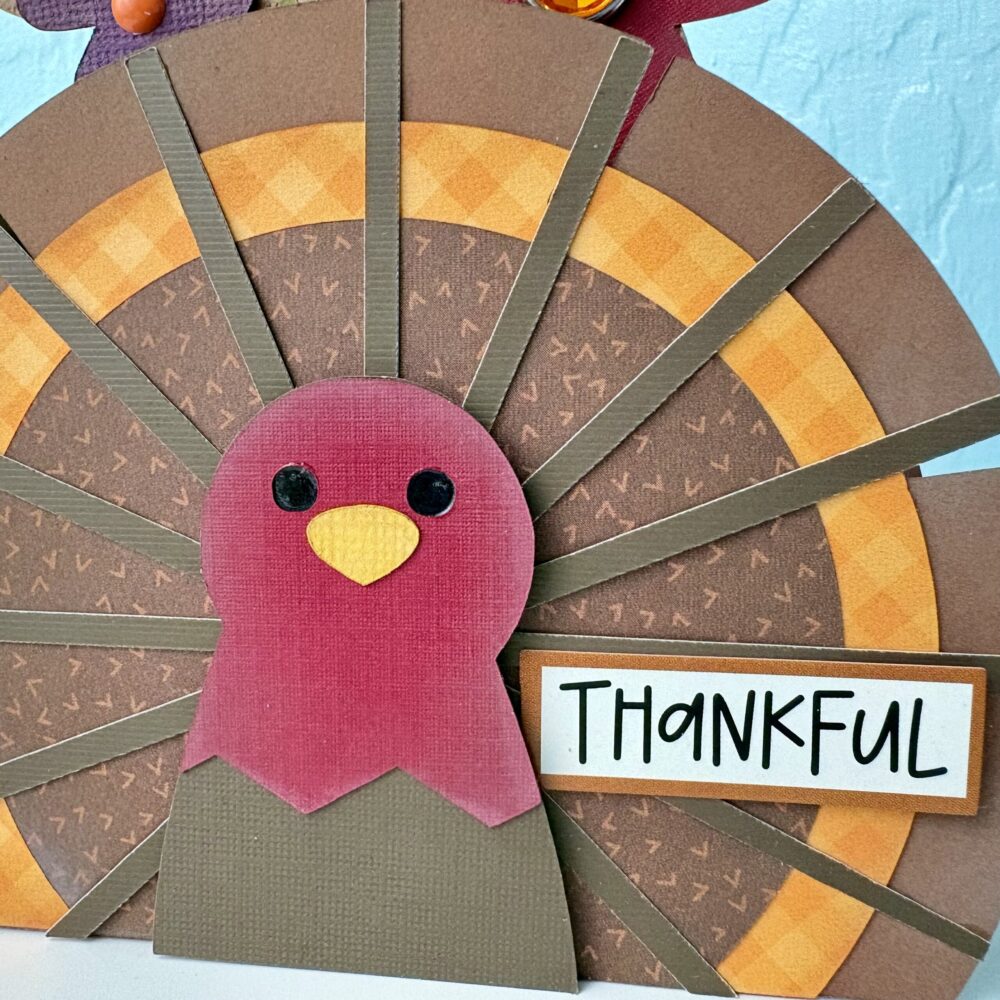
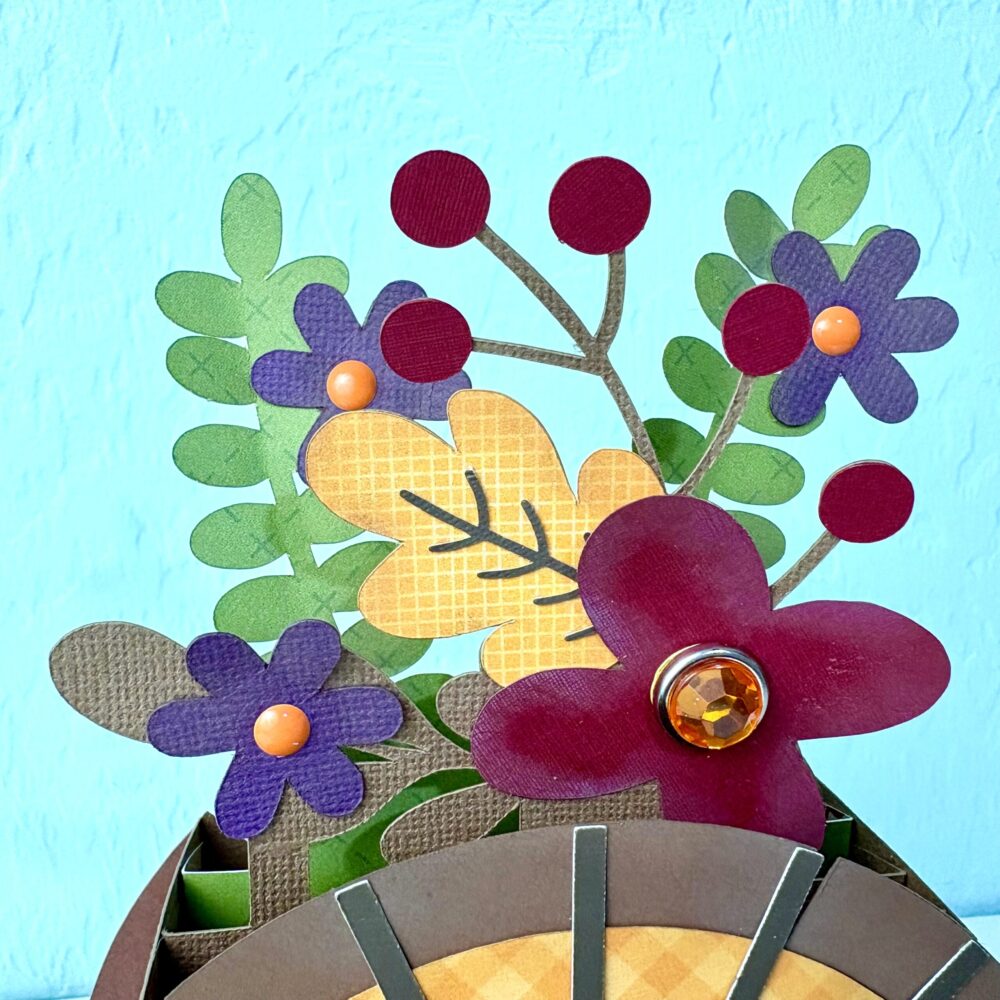
I had so much fun putting this one together! The warm browns, golden yellows, and pops of burgundy and purple make such a pretty fall color combination. I especially love the layered turkey feathers and the little arrangement of flowers and berries tucked behind him. The finishing touch is the sparkly orange gem that gives this turkey a little extra personality! You can find the Fall Turkey Box card in Lori’s shop or in the Silhouette store (SVG, Silhouette).

Box cards are always fun to create because they have so much dimension and make such a cute display piece. Whether you’re sending one to a friend, adding it to your Thanksgiving table, or giving it to someone special, it’s a sweet way to share a little gratitude.

I hope this project inspires you to get creative and make something special for the people you’re thankful for!

Happy crafting!

Brandie

Box Card Barn Flowers

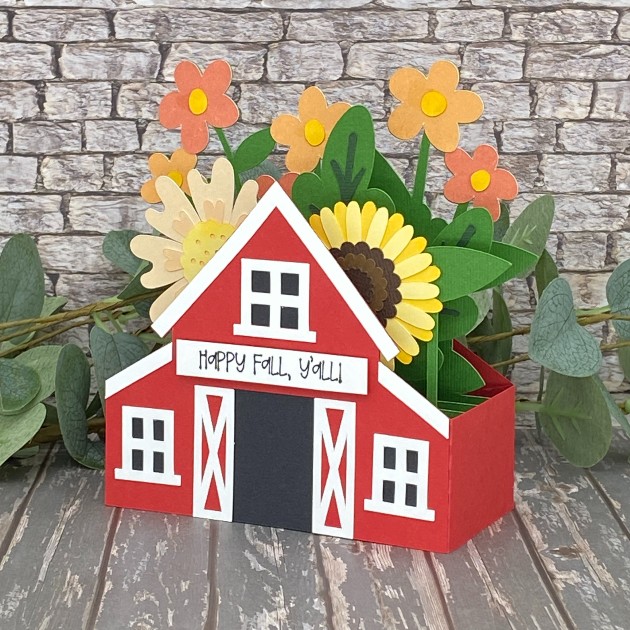
Hi friends, I hope you’re having a great week! Can you believe this month is almost over?! Leslie here, sharing a tutorial for making a Fall themed barn box card. If you love box cards as much as I do, be sure to check out Lori’s shop because she has some really awesome ones. I used the Box Card Barn Flowers SVG cut file (Silhouette)(from the A2 Box Card Autumn Bundle) along with papers from the Pattern Fill Set Autumn Joy for the flowers. So let’s make a box card!

Cut The Pieces

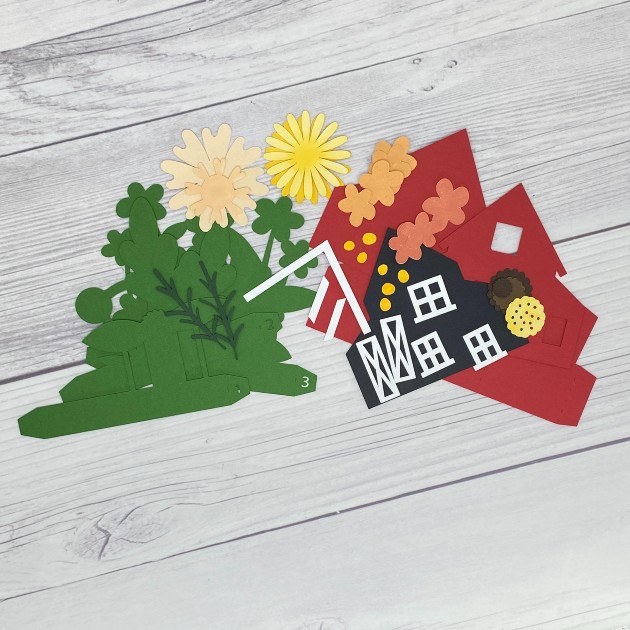
Using your choice of cardstock and patterned paper, cut all the pieces. I used a variety of cardstock in my stash for most of the pieces along with designer papers from Lori’s Pattern Fill Set Autumn Joy for some of the flowers.

Build Front, Back and Inside Panels

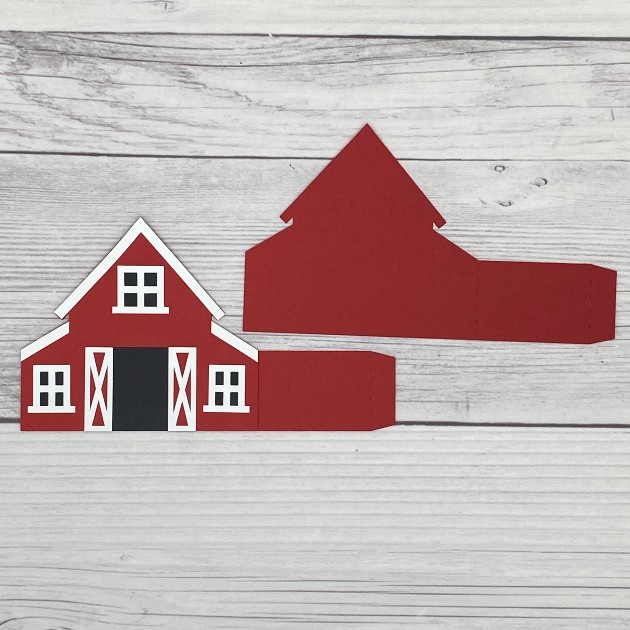
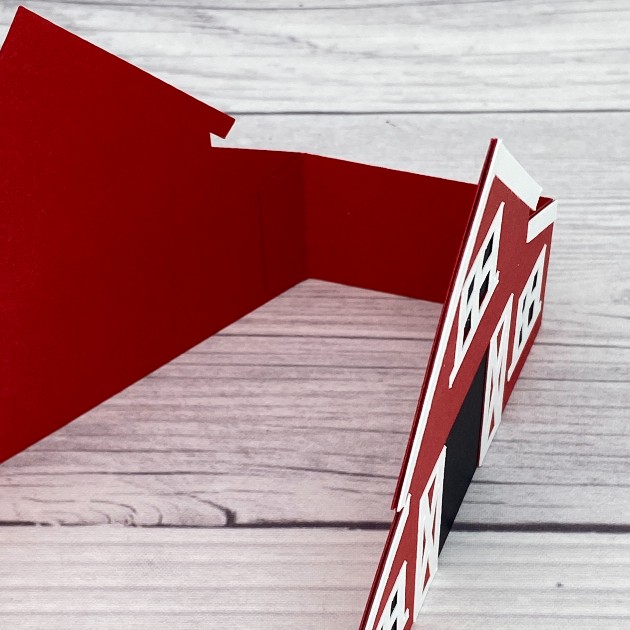
Using your choice of adhesive, build all the panels. I prefer wet glue for the ‘wiggle room’ factor. These are the front and back panels:

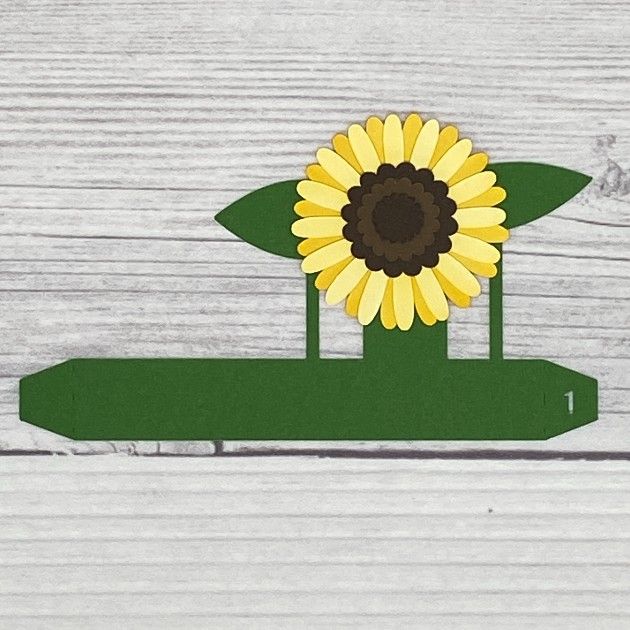
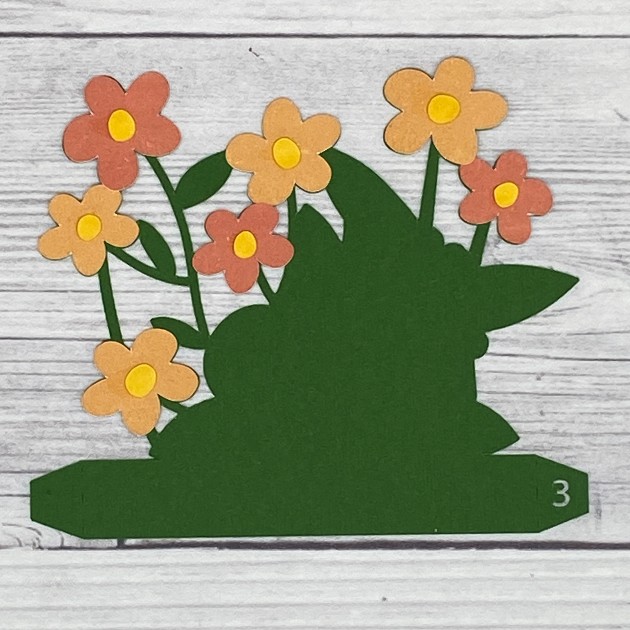
First insert:

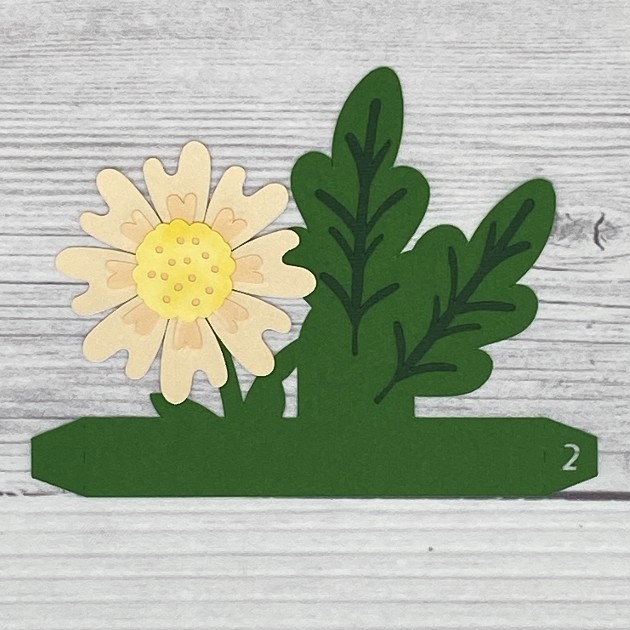
Second (middle) insert:

Third (last) insert:

Assemble The Card

Mountain fold the score lines and adhere the tab on the right side of the front panel to the inside of the back panel.

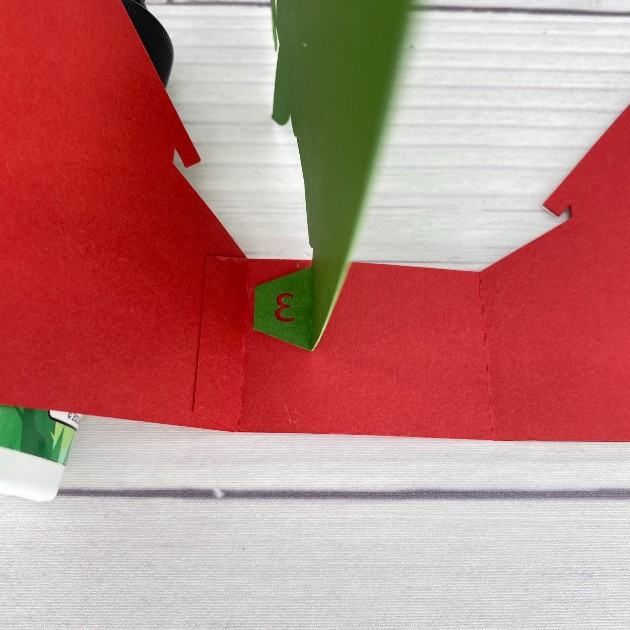
Starting with the third (last) insert, bend the right-hand tab backwards and adhere it to the inside of the card base just to the right of the score line where you adhered the tab in the last step.

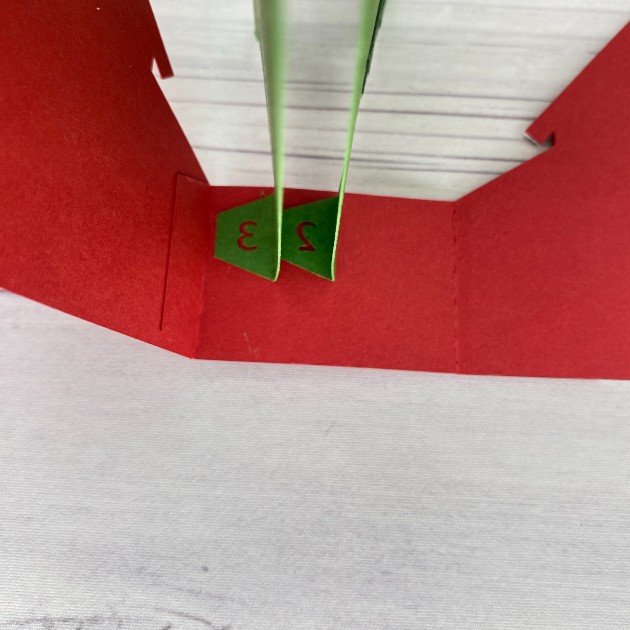
Now come in with the second (middle) insert and glue it just to the right of the third insert. So sorry but I forgot to take a photo of the first insert glued in place (ughhhh), but glue it just to the right of the second insert. They’ll be numbered 3 – 2 – 1 from left to right. The back panel is still on the left and the front panel is still on the right.

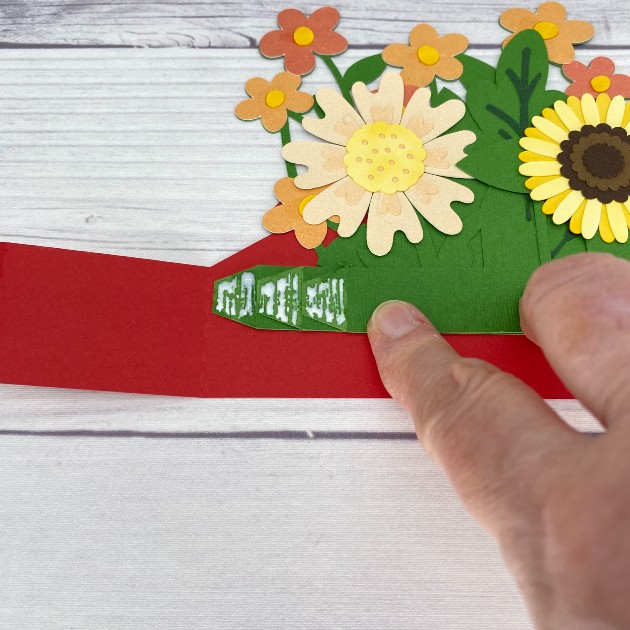
Straighten the back panel and fold all three inserts over toward the left. Be sure the bottom edges line up and apply glue to all three left-hand tabs.

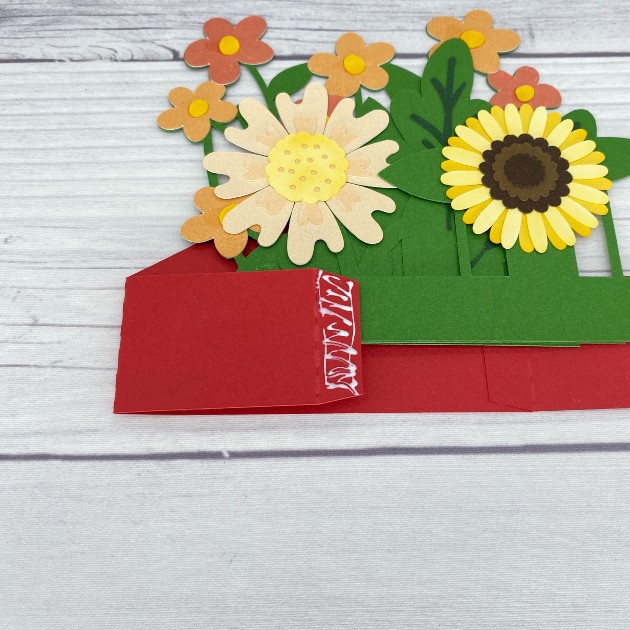
Now fold the side portion of the back panel over toward the left, catching the left-hand tabs on the inserts with the glue on them. Next, apply glue to the tab on the side portion and fold the front panel over toward the right to secure.

The card will now look like this.

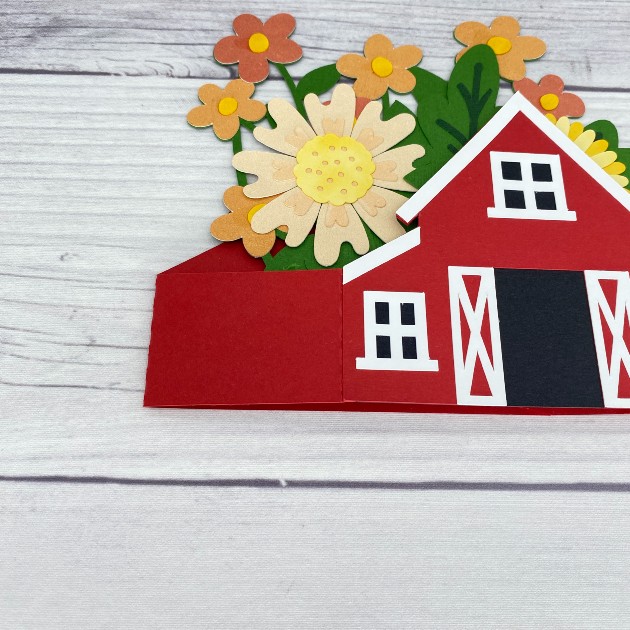
Now push the folds toward the left to help ‘train’ them to fold in either direction.

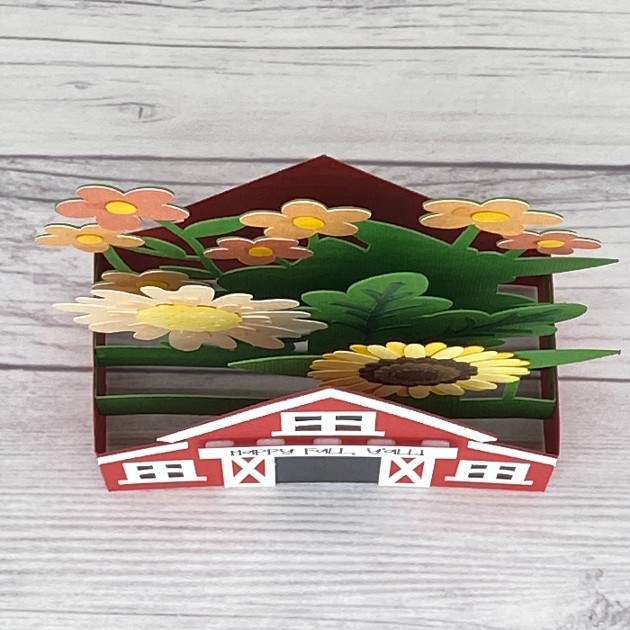
This is an overhead view of the assembled card with all three inserts.

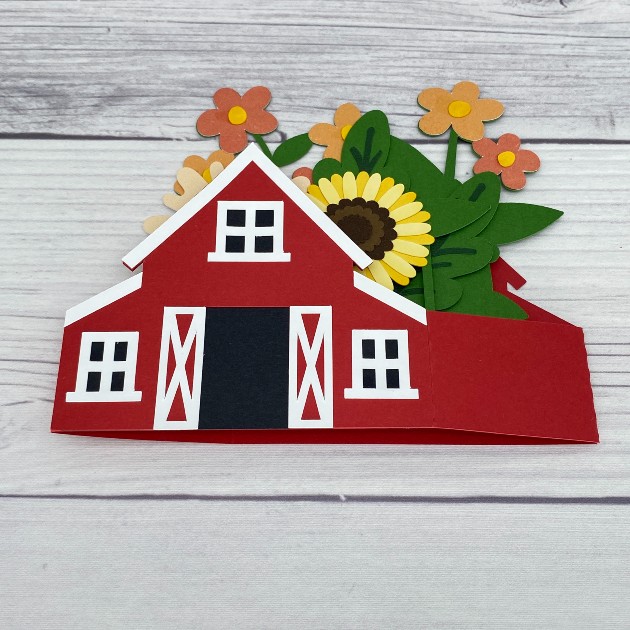
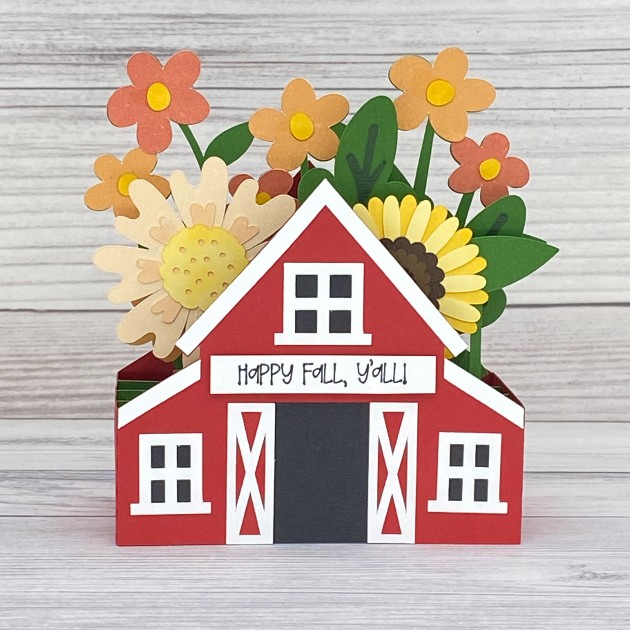
And here’s a finished frontal view. I used the draw function on my Cricut to create a fun sentiment which I popped up on foam squares.

Thanks so much for stopping by today! I hope you’ve enjoyed seeing this awesome Fall themed barn box card and you’ve been inspired to make one. They are so much fun!

Scrappy hugs,
Leslie